Drupal Workspaces: Guide for a Production-ready Workflow
Introduction
Have you ever wanted to preview a set of content changes across your entire Drupal site, before pushing them live? Not just one article, but a whole batch of changes? Drupal core’s Workspaces module can help you do this, but you’ll need more than what Drupal core provides.
In this post, I’ll show you the modules and customizations that you’ll need to build a production-ready Workspaces workflow.
Why Workspaces?
Consider these scenarios:
- A marketing team needs to update 20 pages for a product launch, and all the changes must go live at the same time.
- A content editor wants stakeholder review of a set of changes across multiple content types before publishing.
- Your organization requires a staging workflow for content, not just code.
Without Workspaces, Drupal’s content moderation operates on individual nodes. You can draft a single node, but there’s no built-in way to group a batch of changes and publish them together. The Workspaces module solves this problem by introducing an isolated environment where all content changes are tracked, previewed, and published as a unit.
Features
Core’s Workspaces: Start the experience
Drupal core provides base functionality for workspaces in its modules Workspaces and Workspaces UI. This includes:
- Isolated editing environments. Create a workspace and switch into it. Then the workspace tracks every content change you make. Other users visiting the live site see no changes until you publish the workspace.
- Full-site preview. While active in a workspace, the entire site reflects
your in-progress changes. This is a full-site preview, not a single-node
preview — you can navigate between pages and see how your changes look in
context.
- Note: This requires the user to log into Drupal and have access to the admin toolbar. For a better experience, read on to learn about the workspace preview indicator.
- Publish as a batch. When your changes are ready, publish the workspace. All tracked revisions are pushed to the live site at once.
- Revision tracking. Workspaces hooks into Drupal’s entity revision system. Every change you make in a workspace creates a new revision associated with that workspace.
How does it work?
If you’re curious about how Workspaces actually works, check out Appendix 1.
Contrib add-ons: Extend the experience
I would highly recommend these contributed modules to add essential features to the Workspaces experience.
Workspaces Extra
The Workspaces Extra module adds helpful features like workspace status tracking (open/closed), rollback capabilities, content movement between workspaces, and revision squashing on publish.
This module also provides a suite of helpful add-ons. See that module’s page for its full list of add-ons. I’ll highlight a few below.
Quick win: Go to /admin/config/workflow/workspaces/settings and tick the box
Use the simplified workspace switcher in the toolbar. This makes the
administrative workspace switcher much more usuable.
Workspaces Preview (wse_preview)
This is one of WSE’s standout features. It generates shareable preview links that allow anyone — including unauthenticated users — to view workspace content without logging in. This is invaluable for stakeholder review.
The flow works like this:
- Create a workspace and make your content changes.
- Generate a preview link for the workspace.
- Share the link with reviewers. When they visit it, a cookie-based session activates and they see the workspace content as they browse the site.
To configure this, enable module Workspaces Preview. Then grant the “Access workspace previews” permission to the appropriate roles (including Anonymous, if external reviewers need access).
Workspaces Menu (wse_menu)
Allows you to stage menu changes. This includes adding items to a menu, removing them, re-arranging them, and moving them in the menu hierarchy.
Important note: After enabling the module, I needed to run database updates
and flush caches before it worked as expected. This behavior is still required,
as of Drupal core 11.3.7 and wse_menu version 3.0.0-alpha2. To enable the
module and perform these additional steps:
drush pm:install wse_menu
drush updatedb
drush cache:rebuild
Workspaces Parallel
The Workspaces Parallel
module (drupal/workspaces_parallel) addresses a significant limitation of core
Workspaces: by default, a piece of content can only be edited in one workspace
at a time. With Workspaces Parallel, the same content can be edited in multiple
workspaces simultaneously.
A word of caution: This module does not provide conflict resolution. That is, if you edit a node from two different workspaces, the workspace that you publish second will overwrite the first.
Or, consider the following example. You create a workspace “Tuesday’s Changes” on Tuesday. On Wednesday, you make changes to a node in that workspace. On Thursday, you spot a critical typo on that same node, so you switch back to the live workspace to fix that typo. Then, on Friday, you publish the “Tuesday’s Changes” workspace. If you did not also fix the typo in this workspace, then your typo fix (from the live workspace) will be overwritten when you publish this workspace.
Custom modules: Complete the experience
When we implemented Workspaces on an enterprise Drupal application, we developed a few modules that further helped our site (these may become contrib modules in the future).
Workspace preview indicator
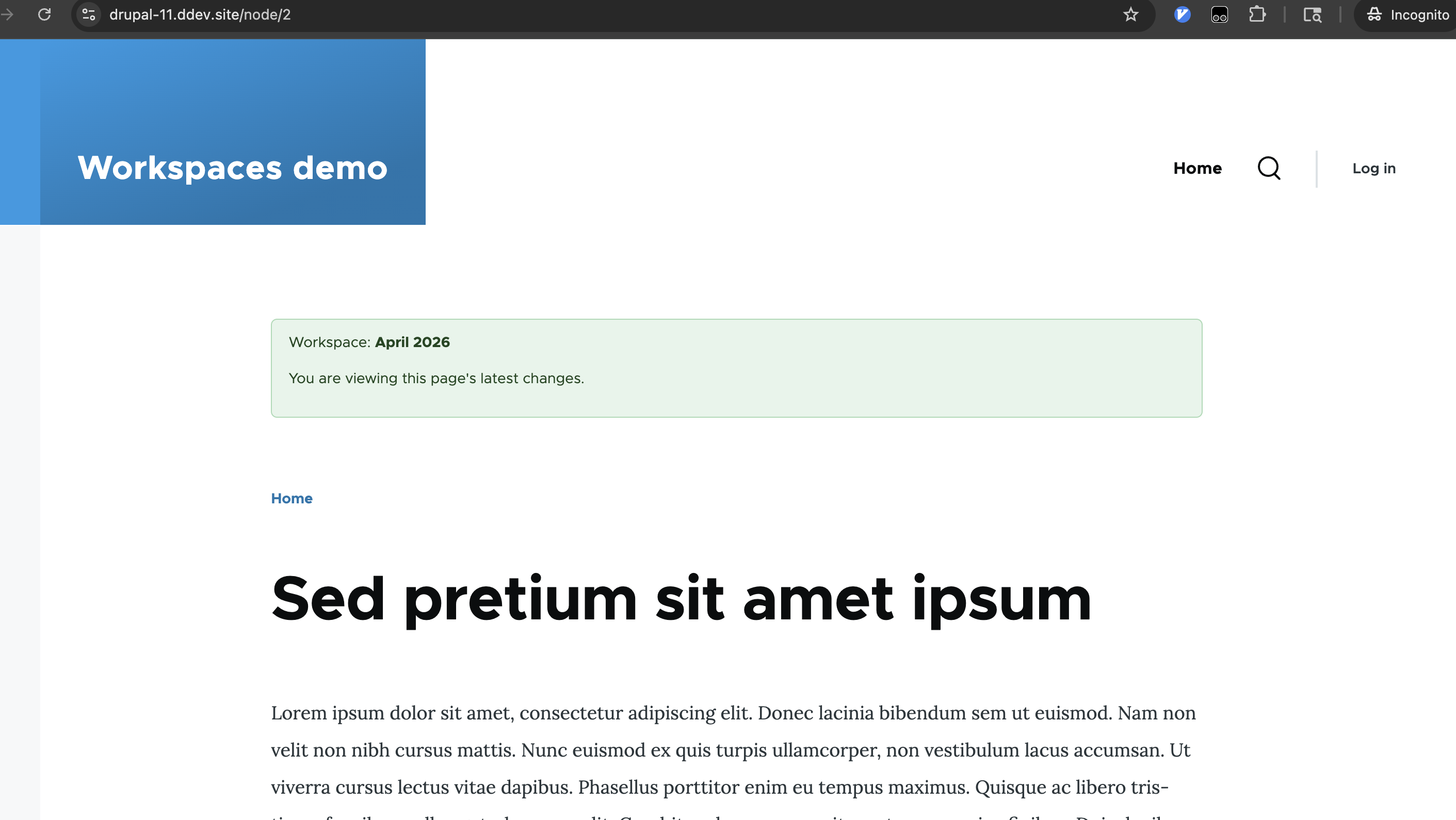
This block alerts a user when they are in a workspace preview. This indicator helps stakeholders easily know when they are in a workspace preview, including whether the current page has been changed in this workspace.
See the module’s code.
Example:
Searchable change list
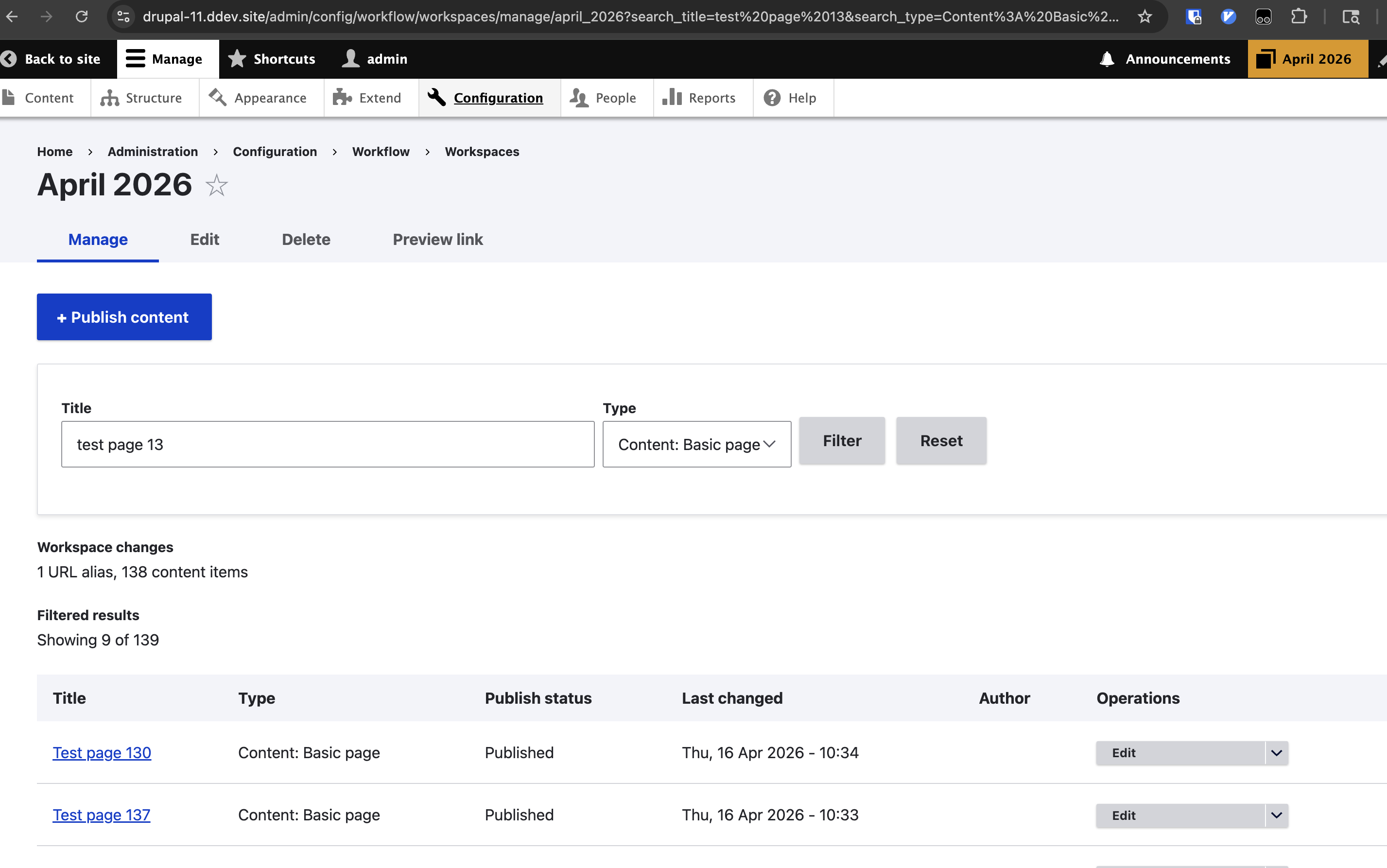
Drupal core’s workspace manager lists the changes in a workspace. If you have many changes in this workspace, the changes are broken into multiple pages, and you cannot search for changes in this list. This behavior is a problem if you have a lot of changes and need to quickly find a node change in this list.
To address this problem, we wrote an alternative workspace manager that allows you to filter the changed items in a workspace, by title and entity type+bundle (i.e., content type).
See the module’s code.
Example:
Performance note: This custom list is very expensive for performance,
because 1) it doesn’t use a pager and 2) it post-processes the rows to exclude
ones that don’t match filter criteria. In my experience, even when there are
just a few hundred changes, the page can take 10-20 seconds to load. If I
re-implemented this, I would try to find a more performant method (e.g.,
integrate the search filters into the SQL queries as WHERE clauses, instead of
loading all of a workspace’s entities and then pruning items that don’t match
the search filters).
CDN-safe previews
If your website uses a CDN or other external page cache (e.g., Cloudflare, Fastly, Varnish, Akamai, etc.), you might risk corrupting your page cache when you view a Workspace preview.
This will only affect you if all of the following are true:
- You use an external CDN for caching pages.
- Your CDN domain name is different from your origin’s domain name. For
example, your public domain is
www.acme.comand your origin/internal domain isdrupal.acme.com. - Your internal users (e.g., editorial staff and Drupal admins) use the origin domain, but all public traffic is routed to the CDN domain.
- Your CDN is configured to ignore cookies. This is not default behavior for most CDNs; unless you have specifically configured your page cache to ignore cookies, this condition probably does not apply to you.
If your site meets all of these conditions, you should consider using this custom module, to prevent someone from opening a workspace preview on the CDN’s public domain name. If someone opens a workspace preview on the CDN domain, the CDN might cache that page and serve it to other users, thus accidentally exposing non-published changes.
See the module’s code.
Technical explanation: When you enter a workspace preview, Drupal sets a cookie to restrict you to this specific workspace. When this cookie is set, Drupal disables page caches, and allows the workspace preview to determine which versions of pages to serve you. If your page cache does not respect cookies when it considers whether to store a page in the cache, and if a user is in a workspace preview and visits a previously-uncached page, the CDN may cache that page. Later, when someone else requests the page at that URL, the CDN would serve that cached page to them, regardless of whether that user is in a workspace preview.
Publish workspace in a code deployment
To publish a workspace, you can use the workspace form in the UI. However, this
form is problematic for large change sets, because it does not use batching
(e.g., you run the risk of PHP memory limits or server timeouts). To work around
this, you can publish a workspace with a deploy hook (triggered by drush deploy). While this method requires planning, it gives you a more testable
approach.
Here is an example deploy
hook,
in a sample custom module named mysite.
Patches
Working with Workspaces in production, I encountered a few core and contrib issues that required patches. These are worth tracking:
- Drupal core (tested against release 11.3.7)
- #3511204:
Workspaces shouldn’t disable the
latest-versionlink template (patch direct link). - #3541380: Workspaces loads the wrong revision on the node edit form when Content Moderation is also enabled (patch direct link).
- #3511204:
Workspaces shouldn’t disable the
- Workspaces Extra (tested against 3.0.0-alpha2)
- #3563768: Adds context and warnings to the WSE discard changes form (patch direct link).
- Redirect (tested against 1.12.0)
- No issue: Use this patch to prevent the Redirect module from automatically creating redirects for URL alias changes inside workspaces (redirects are not revisionable entities, so they do not play well with Workspaces). But don’t worry; when you publish a workspace, Redirect will then hook in to automatically create redirects for changed URL aliases.
Wrapping up
Drupal’s Workspaces is a powerful tool for managing sets of content changes. Combined with contrib and custom add-ons, you can use Workspaces to enable your team to safely and efficiently create, stage, review, and publish large sets of changes.
Additional resources
- DrupalCon presentation (Sep 2024) about Workspaces and helpful contrib modules
- Workspaces module documentation
- WSE (Workspaces Extra) project page
- Workspaces Parallel project page
Appendices
Appendix 1: How does Workspaces work?
{#appendix-1:-how-does-workspaces-work?}
In short, Workspaces is a way to group entity revisions. The Workspace module tracks these revisions, and displays them only when a user is inside this workspace. If someone publishes the workspace, then those revisions get promoted to the live site (i.e., the default workspace).
In the Drupal UI, an administrator (or whoever has appropriate permissions) can create a workspace. They can manage and publish it in the UI. At this time, there are no Drush integrations for command-line Workspaces control.
Here’s a technical illustration of how workspaces works:
- In the default workspace, node #1 has 3 revisions. Revision #3 is published, so the site always uses that revision when node #1 is requested.
- Someone creates a workspace named “Wednesday changes”.
- Inside this workspace, they update node #1, which results in revision #4.
- When this workspace is active, if node #1 is requested, then the Workspaces module hooks in to provide revision #4.
- Otherwise, when someone in the default workspace requests this node, Workspaces module ignores that request, which means the user gets revision #3.
Workspaces accomplishes this in an entity pre-load hook.
Appendix 2: FAQs
Q: Is a workspace preview environment on a different domain name? A: No. The workspace preview is on the same domain name. Drupal knows which workspace preview (if any) to display based on your session data (if logged into Drupal) or a cookie (if logged out).